


Dolphin Emulator
4.19.64K Reviews
App Specs
- Version
- 2606a
- Updated On
- License
- Free
- Downloads
- 10,000,000+
- Developer
- Dolphin Emulator
- Categories
- Arcade
- Platform
- Android
Screenshots
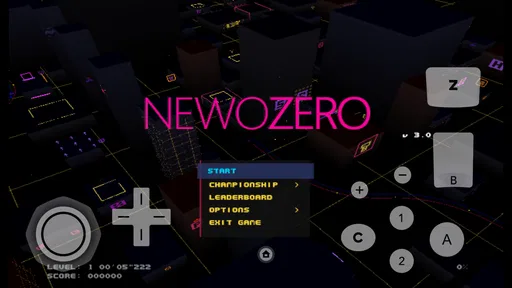
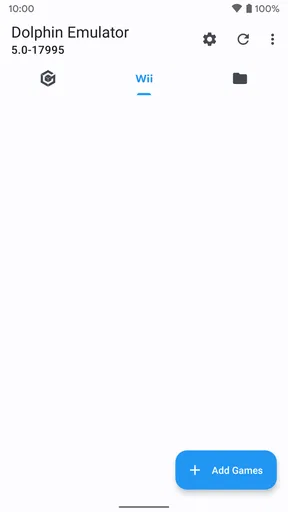
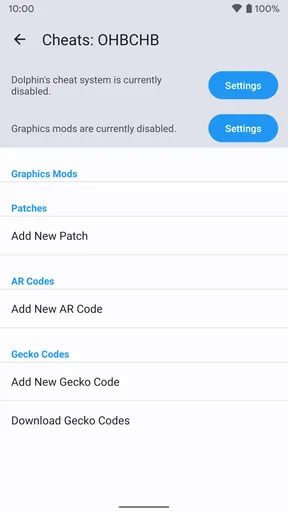
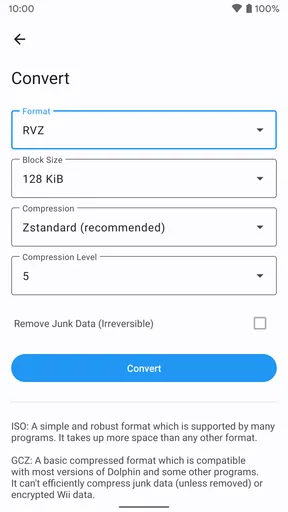
 Analysis by AppCompare
I came to Dolphin Emulator for a simple reason: I wanted to play GameCube and Wii games on a phone rather than keep a console handy. That use case is still its clearest appeal. It is a free arcade game from Dolphin Emulator, and its 4.1 average from around 107,000 ratings suggests that plenty of people find it worthwhile, though an emulator’s real success depends heavily on the games, phone, and controls involved.
The app has been available since 2013, and version 2603a runs on Android 5.0 or later. It has over 10 million installs and an Everyone age rating. Those figures help explain its reach, but they are not a promise that every game will run well on every device. I’d treat Dolphin as a capable way to revisit a personal game collection, not as a one-tap shortcut to a flawless console experience.
Free access, with an important distinction
The app itself is free, which makes trying it less of a financial commitment than buying a new game or dedicated gaming hardware. That is the straightforward part of its value. The cost of using it in practice depends on what you already own: Dolphin is an emulator, not a bundle of GameCube or Wii games, so you need game files you are entitled to use.
I would not assume that downloading a game file is automatically permitted just because the emulator is free. Keeping your use to games you own and following the laws where you live is the sensible approach. If you are looking for an app that opens with a library of included games, this is not that kind of download.
Why Dolphin Emulator Stands Out
So, what’s the deal with this emulator that everyone’s raving about? Well, the Dolphin Emulator is a powerhouse when it comes to compatibility. It supports a wide range of games, allowing you to relive those favorite childhood moments with just a few taps. Plus, it's available for both Android and iOS, making it super accessible.
Setting Up the Magic
Getting started with the Dolphin Emulator is a breeze. First off, you’ll need the app, which you can snag from their official site. After that, it’s all about finding the right ROMs for your games. Now, I can’t stress this enough, folks—make sure you own the games you’re downloading ROMs for, or you might find yourself in a bit of a legal pickle.
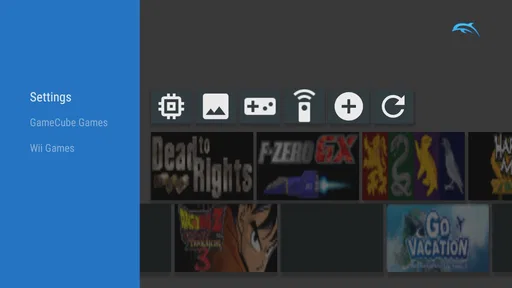
Once you have your games ready, loading them into the emulator is as simple as pie. The interface is straightforward and user-friendly, allowing even the most tech-challenged among us to get up and running in no time. Plus, with customizable settings, you can tweak performance to suit your device’s capabilities.
Worth Reading Before You Choose

EA SPORTS FC Mobile 26 Is a Bigger Football Game, but It Takes Time

Flipboard Shows What News Apps Must Do Beyond the Feed

Switching to Android Auto Means Rethinking Your Driving Routine

Google Calendar Makes a Crowded Week Easier to Manage

Ludo King Makes the Most of the Minutes Between Plans

Baby Panda World Brings Quick Play to Modern Phones, but Its Game Library Feels Busy
In everyday use, the first practical question is usually where the game files live and how to keep them organized. I’d put the games you plan to test in a clearly named folder and point the app to that location, rather than scattering files across downloads and storage. That makes it easier to find a title again if you change devices or need to troubleshoot. Keep a separate backup of your own game files and any saves you care about; an emulator should not be the only place holding progress you would hate to lose.
It also helps to test one game before building a large library or spending time tuning settings. Start with the default setup, check that the game launches and that its controls make sense, then adjust only if you notice a specific problem. Changing several settings at once makes it harder to tell which adjustment helped—or made things worse. This small, patient approach is more useful than chasing a universal “best” configuration, because performance can vary by phone and game.
Performance That Packs a Punch
Let’s talk performance. The Dolphin Emulator is known for its high compatibility and impressive graphics. Even on mobile devices, the graphics are crisp, and the frame rates are smooth, giving you a seamless gaming experience. And if you’re rocking a high-end device, you’re in for a treat with enhanced visuals that make those classic games pop!
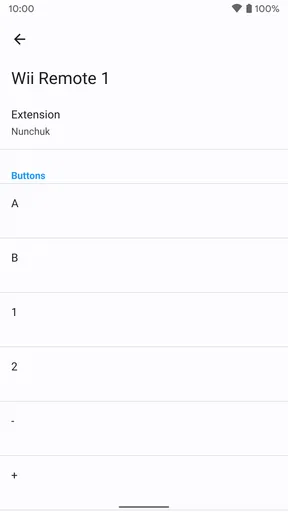
What’s even cooler is the support for various controllers, including Bluetooth gamepads. This means you can get that authentic console feel without any hassle. And hey, if you’re feeling nostalgic, you can even hook up your old Wii controllers!
In my view, “will it run?” is only half the performance question. The other half is whether it stays comfortable to play. A game that launches but feels sluggish, heats the phone, drains the battery quickly, or becomes awkward to control may not be a good fit for a long session. Try a short play session before settling in, especially if you are relying on touch controls. If a game feels demanding, lowering visual enhancements is a reasonable trade-off: a steadier, more responsive experience matters more than sharper edges when timing is important.
Touch controls are convenient when you are away from home, but they can cover part of the screen and lack the physical feedback of buttons. I’d use them for a quick check or a game that does not require precise inputs, then pair a compatible controller for longer play if that is practical. A controller can make familiar console controls feel natural, but it adds another item to carry and may take a little setup. Dolphin is most appealing when the portability is worth that extra effort.
Features That Elevate Your Gaming
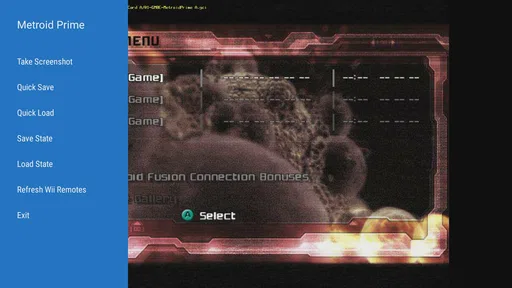
Diving into the features, one of the standout elements is the save state functionality. You can save your game at any point, which is a lifesaver for those tricky levels or unexpected interruptions. Just reload your state, and you’re back in the action!
Another neat feature is the ability to upscale the resolution. This means you can enjoy your favorite classics in a clarity that was unimaginable back in the day. Trust me, seeing your favorite characters in HD is a game-changer.
Save states are especially useful for interrupted mobile play: if you need to stop for a call or step off a train, saving at a convenient moment can make it easier to resume. I would still keep ordinary in-game saves where the game provides them. A quick state is handy, but treating it as the only save can leave you with a fragile single point of recovery if you later change settings or run into a problem.
Resolution changes are best approached as a preference, not a free upgrade. Higher clarity can make older visuals look cleaner on a modern screen, but it can also ask more of the device. I’d compare the default image with a modest increase during a short test, then keep the setting that feels smooth and readable. If you notice slowdown, back off rather than assuming that more enhancement is always better.
Choosing it over simpler alternatives
Compared with playing a game on its original console, Dolphin trades the certainty of dedicated hardware for convenience and flexibility on a device you may already carry. It can be a good choice when you want to revisit games without setting up a console and television, or when you want to use a compatible controller with a portable screen. The console is the better option if you want the original living-room setup, predictable controls, and no emulator configuration to think about.
Compared with casual arcade games made specifically for phones, Dolphin asks more of you. Those games are generally ready to play straight away; here, you need to bring your own legally obtained game files, choose controls, and accept that settings or performance may need attention. In return, you are revisiting GameCube and Wii titles rather than picking up a quick phone game. That difference makes it a poor fit for someone who simply wants an instant, self-contained arcade app.
A realistic use for it is a short trip where I already have a game I own, a phone with enough charge, and a Bluetooth controller in my bag. I can use a save state when I need to pause, then continue later without unpacking a console. If I am commuting with only a phone and no controller, a quick session may still work, but touch controls could make a demanding game frustrating. Planning around those small details is what turns the emulator from an interesting download into something I would actually use.
Community and Support
One of the things I love about the Dolphin Emulator is the thriving community behind it. Whether it's troubleshooting, tips, or sharing experiences, there’s a wealth of information out there. The developers are active and continually work on updates, ensuring the emulator stays top of the line.
If you ever run into issues, chances are someone else has already tackled it, and you can find a solution with a quick search. It’s always reassuring to know you’re not alone in the digital wilderness!
When looking for help, I would make the question specific: name the game, describe what the phone is doing, and mention which setting you changed. “This game runs badly” is hard for anyone to diagnose; “it slows down after I increased the resolution” gives a clearer starting point. I’d also change one setting at a time and note what I changed, so it is easy to undo an experiment. Community advice can be useful, but a setting that helps one device or title may not be the right answer for another.
That is also why I would not judge the whole app by a single troublesome game. Compatibility is broad, but broad support is not the same as identical results for every title. If one game is central to your decision, test that one first. If your main goal is to play without adjusting anything, the original hardware or a simpler mobile game may be a less frustrating choice.
Who is likely to get the most from it?
I’d recommend Dolphin to people who already have GameCube or Wii games they want to revisit, enjoy experimenting a little, and are comfortable setting up files and controls. It can also suit someone who values portability more than recreating the exact feel of a console setup. The free app makes that first experiment easy to justify, provided you understand that the games themselves are not included.
I would skip it if you expect a ready-made game collection, need every title to work perfectly without adjustment, or dislike managing files. It may also be the wrong pick for someone with an older or less capable phone who wants enhanced visuals and consistently smooth play. In those cases, playing on original hardware—or choosing a mobile game designed for the device—may offer a simpler experience, even if it does not deliver the same library.
Final Thoughts
In conclusion, the Dolphin Emulator is a fantastic tool for anyone looking to dive back into the world of GameCube and Wii games. Its ease of use, impressive performance, and robust community make it a top choice for emulation enthusiasts. Whether you’re a seasoned gamer or just looking to relive some childhood memories, this emulator has something to offer.
So go ahead and give it a whirl. You might just find yourself lost in a world of pixelated adventures, and trust me, that’s not a bad place to be!
My verdict is to try it if the games you want to play are ones you own and you are willing to test controls and settings for yourself. The price of the app is free, so there is no app purchase to weigh against that learning curve; the value comes from how much use you will get from your existing collection. I would not choose it for effortless, guaranteed play, but for a curious retro fan with a suitable device, it is a compelling way to take familiar console games along.
Pros
- High compatibility with many games.
- Customizable control settings.
- Supports save states for convenience.
- High-resolution graphics options.
- Active community support and updates.
Cons
- Requires a powerful device for smooth performance.
- Not all games run perfectly.
- Setup can be complex for beginners.
- Occasional crashes or bugs.
- Legal concerns with ROM usage.
FAQs for Dolphin Emulator
What is Dolphin Emulator and what platforms does it support?
Dolphin Emulator is a free and open-source emulator that allows you to play Nintendo GameCube and Wii games on your Android or iOS device. It supports Windows, macOS, Linux, and Android, providing a versatile gaming experience across multiple platforms. Note that iOS support may require additional steps for installation.
How do I install games on Dolphin Emulator?
To install games on Dolphin Emulator, you need to have game files in ISO or WBFS format. You can load these files directly into the emulator by selecting the game directory. Be sure to legally own the games you wish to play, as downloading game ROMs without ownership is against the terms of service.
Is Dolphin Emulator legal to use?
Yes, Dolphin Emulator itself is legal to use. However, the legality depends on how you acquire the game files. It's legal if you own a physical copy of the game and create your own backup. Downloading copyrighted games from the internet without permission is illegal and not supported by the Dolphin team.
What are the system requirements for Dolphin Emulator?
Dolphin Emulator requires a relatively powerful device to run smoothly. For Android, a 64-bit version of Android 5.0 and above is needed, along with a minimum of 2GB RAM and a quad-core processor. For PCs, a modern CPU with strong single-core performance and a dedicated graphics card are recommended for optimal performance.
Does Dolphin Emulator support multiplayer gaming?
Yes, Dolphin Emulator supports multiplayer gaming through its Netplay feature. This allows you to play games with others over the internet. However, both players must have the same version of the emulator and identical game files to ensure compatibility. Local multiplayer is also supported, mimicking the console's original multiplayer functionality.


